Skip to content

How to read and reply to Android texts on a Mac

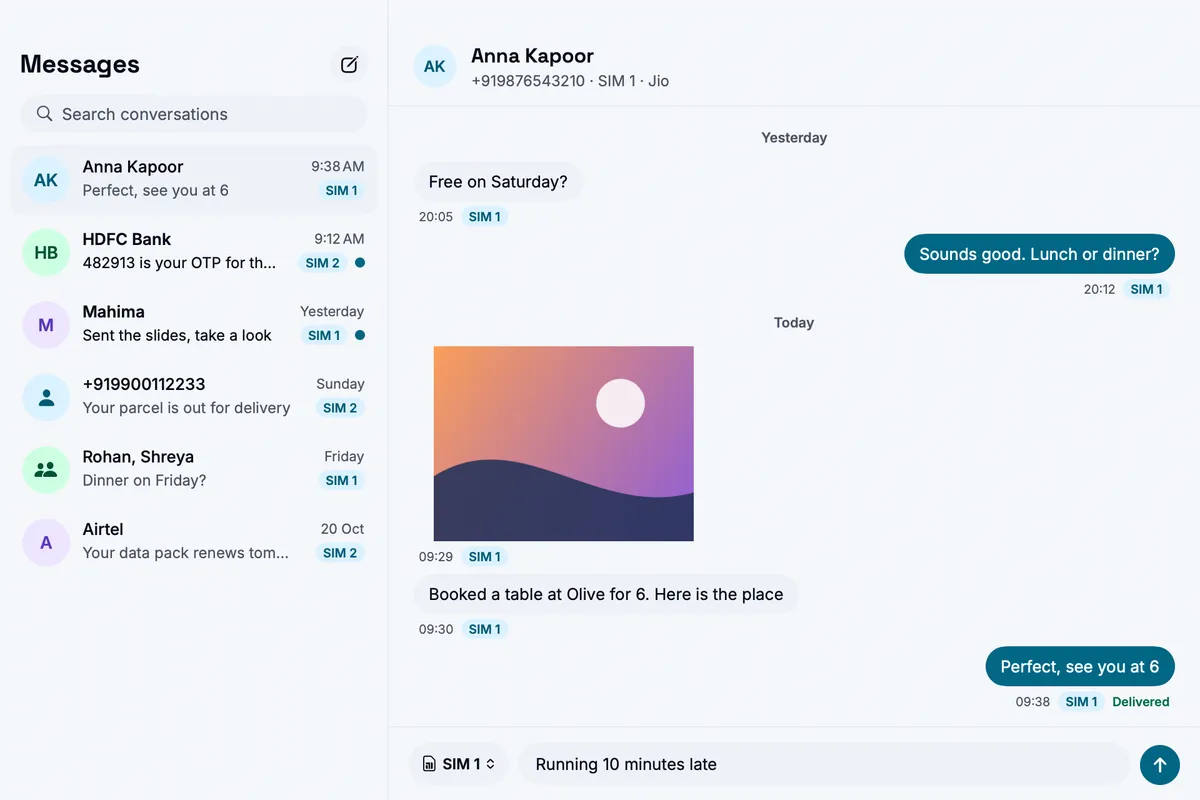
Turn on Text messages in Bridgey on the phone and on the Mac. Your conversations open in a Messages window on the Mac, and replies go out through your phone. It is off until you turn it on.

Written for Bridgey beta 19, 1 Nov 2026.

Bridgey’s Messages window on a Mac: a list of conversations on the left and one open on the right, with a photo and a reply field
The Messages window on the Mac, with demo conversations.

Turn it on

  1. On the phone, open Bridgey’s Settings > Text messages and turn it on for your Mac. Allow SMS access. Contacts access is optional; without it you see numbers instead of names.
  2. On the Mac, open Settings > Text messages and turn it on.

Read and reply

A text notification on the Mac has a Reply field. For whole conversations, open Messages from the Bridgey panel. Pick one to read and reply, or use New message. On a phone with two SIMs, choose the SIM by the send button.

Unread conversations come first. Pin, mute, archive or delete them on the Mac, and search with Command-F. These choices stay on the Mac; your phone’s messaging app is not changed.

Group conversations are read-only on the Mac. Answer them on the phone.

If replies do not arrive

Turn on Send replies as SMS on the phone.

Default app, groups and where texts are kept

Does Bridgey become my default SMS app?

No. Your phone’s messaging app stays as it is. Replies go out through it when it can, or as an SMS.

Can I answer group conversations on the Mac?

You can read them on the Mac. Answer them on the phone.

Where are my messages kept?

On your phone, and a copy on your own paired Macs, sent encrypted. Turning Text messages off, or forgetting the phone, deletes the copy on the Mac.

Install the beta on your phone and your Mac.

Free and open source, no account. Homebrew, Obtainium and checksums are on the download page. All the ways to install

For macOS 13+ and Android 8.0+. Beta 19; there is no stable release yet.

Next